Edit the Website
- Web
- iPhone and iPad
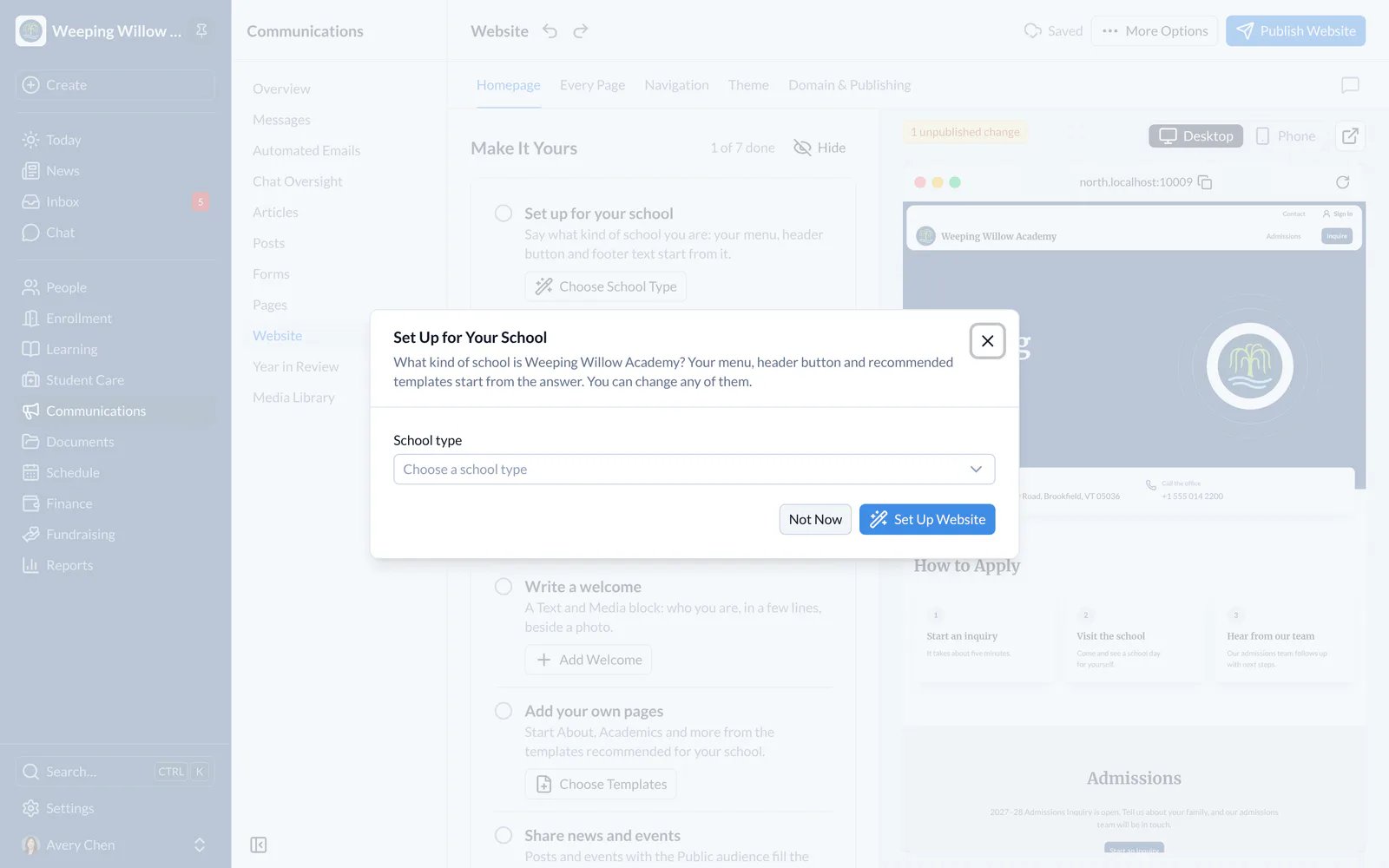
- Open Website, in Communications.
- On the Homepage tab, add, edit or reorder blocks, such as News, Events or a Gallery.
- Use Navigation for the menu, Theme for fonts and colors, and Domain & Publishing for the website’s address.
- Your changes save as a draft. Visitors don’t see them until you publish.