

Is This for You?
Your child has a place at a school that uses SchoolCues, and the school has asked you to set up your account, fill in the enrollment forms and pay a deposit. This guide takes you through all of it in about fifteen minutes. There’s no invitation code to type and no separate activation email: the school sends you an invitation, and accepting it sets up your account. Each parent or guardian has their own sign-in, with their own email address. If your partner needs access too, ask the school to invite them as well.Step 1: Accept the School’s Invitation
The school sends an invitation to the email address it has for you, titled with the school’s name, such as Join Riverside Academy on SchoolCues. The invitation works for 7 days.- Open the email and choose Accept Invitation. You can do this on your phone or a computer.
- Check the page: it shows your child’s name, who you are to them and who sent the invitation. Choose Sign In to Accept.
- Create a password for the email address the invitation went to, or choose Google, Apple or Microsoft if that address is one of theirs.
- If you’re asked for a 6-digit code, check your email for it and type it in. It proves the address is yours.
- Back on the invitation, choose Accept Invitation. You see You’re Connected to Your School.
Step 2: Get the App
Most families use the SchoolCues app for messages, absences and payments. Forms and payments work on the web too, if you’d rather use a computer.- iPhone and iPad
- Android
- Web
- Download SchoolCues from the App Store.
- Type the email address your invitation went to and tap Continue, then your password.
- Allow notifications, so you hear about closures and messages straight away.
Step 3: Fill In Your Enrollment Forms
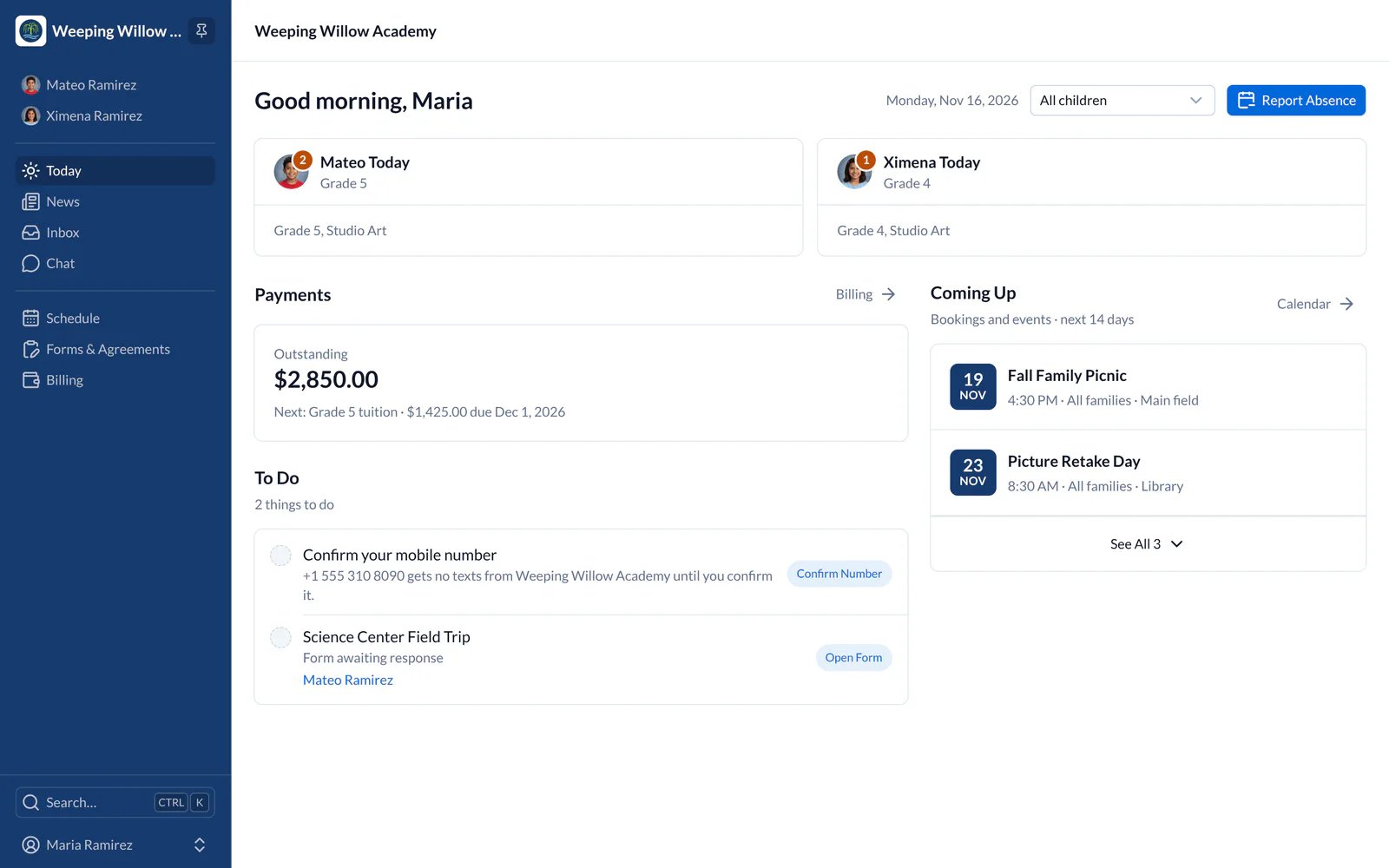
The school’s enrollment agreement and any other forms it needs are in Forms & Agreements. When the school sends one, you also get an email with a link to it.- iPhone and iPad
- Android
- Web
- Tap the agreement on Today, or tap Menu, then Forms & Agreements.
- Fill in each form, tap Submit Form, then read the terms.
- Type your name to sign and tap Sign Agreement.
Step 4: Pay Your Deposit
- iPhone and iPad
- Android
- Web
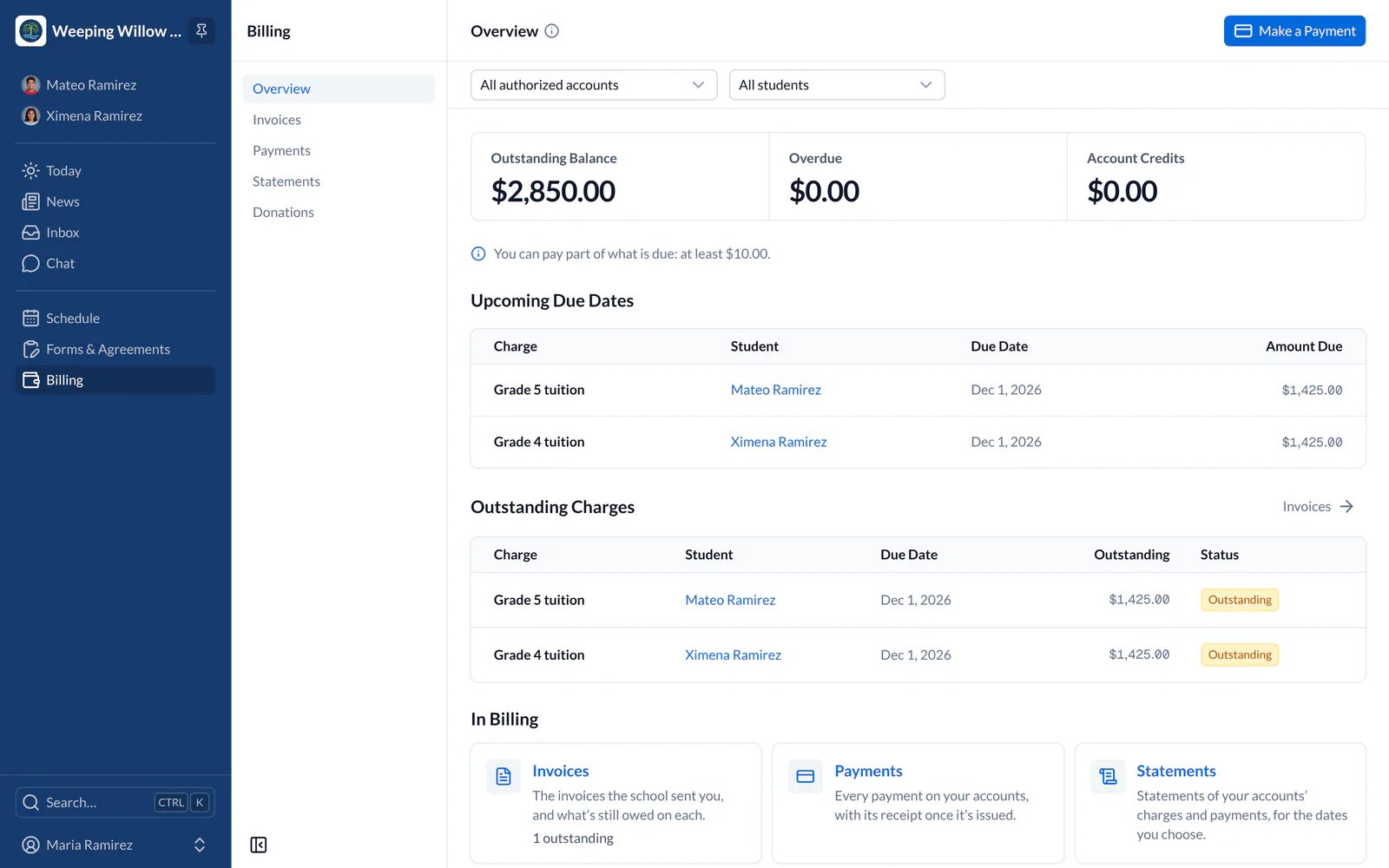
- Tap Menu, then Billing.
- Tap Pay Balance, or open the deposit’s invoice and tap Pay Invoice.
- Pay by bank account or card on the secure payment page.
A Real Example: The Martins Join in March
The Martins are enrolling their son Leo in Kindergarten for the autumn. On Monday, the school office adds Leo and both parents, and sends the enrollment agreement with a $400 deposit.- That evening, Mrs. Martin opens Join Riverside Academy on SchoolCues, chooses Accept Invitation, creates a password and accepts. Mr. Martin does the same from his own email.
- Mrs. Martin downloads the app. Today shows the enrollment agreement waiting.
- On her laptop, she fills in the enrollment forms in Portal › Forms & Agreements, saves halfway to find Leo’s doctor’s number, then finishes and signs.
- In Billing, she pays the $400 deposit by bank account, signing in to her bank on the secure payment page.
Tips for Getting It Right
- Use the email the invitation went to. Each email address belongs to one person. Signing in with a different one tells you it isn’t set up for SchoolCues.
- Accept the invitation first. Accepting it connects you to your child. Then sign in to the app.
- Let the school’s emails in. Mark the invitation as “Not spam”, or add the school’s address to your contacts, so forms and reminders reach your inbox.
- Confirm your mobile number. The school can text you about closures only once you’ve confirmed it. See Get Text Messages from the School.