

Is This for You?
Your payment policy is the set of house rules behind every bill: how families can pay, who covers the card fees, whether they can pay half now and half later, how often they’re nudged and what happens when they’re late. Set it once and SchoolCues applies it to every charge, so the business office isn’t chasing payments by hand. You need finance access. Everything here is in Portal › Settings › Payment Policy, and changes apply from the moment you save.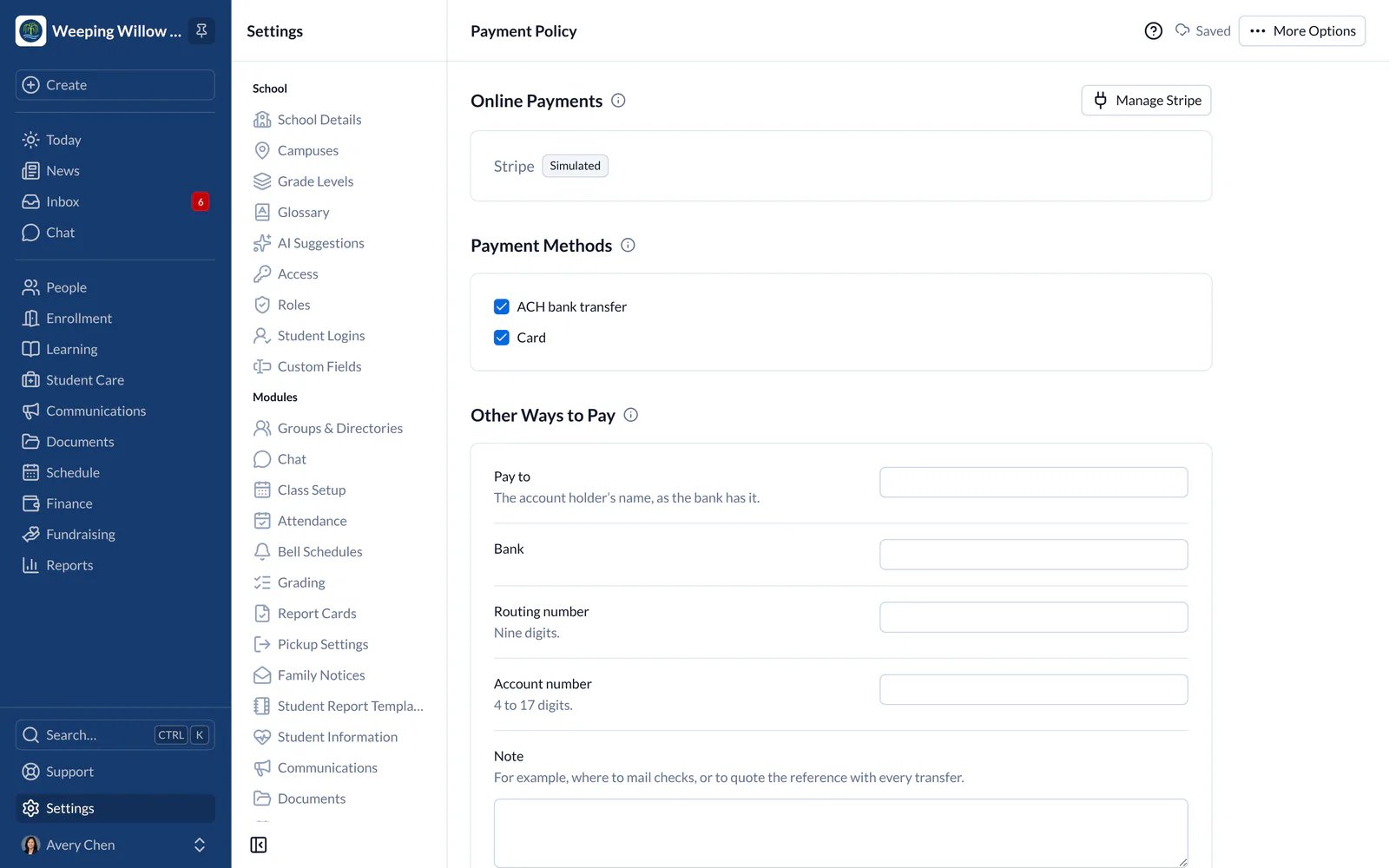
Payment Methods and Fees
- Payment Methods. Turn on Card, ACH bank transfer or both. Staff can always record checks and cash, whatever you choose here.
- Processing Fees. For bank and card payments separately, choose whether The school pays the processing fee or Families do. When families pay, they see the fee before they pay and on their receipt.
- Service Fee. An optional fee of your own on every payment, however families pay. Most schools leave this off.
Some states don’t allow card fees to be passed on, and card networks don’t allow a card fee and a service fee together. If an option is unavailable, the page says why.
Partial Payments
Choose Any payer to let families pay part of what’s due, or No one to ask for the full amount. With partial payments on, you can set a Minimum payment as a percentage of the amount due, and a Minimum online payment so small payments aren’t eaten by fees. A family on a payment arrangement can have their own rules. Open their account in Portal › Finance › Accounts, go to the Payment Rules tab and choose Edit Rules.Reminders
- Due Date Reminders go to each payer before a charge is due: seven days before, the day before or on the day, for charges not yet paid. They arrive in the family’s Inbox, or by email for families without the app. Families on autopay don’t get them.
- Overdue Reminders go to families with overdue charges Daily or Weekly, and stop once the balance is paid. Choose Off to send them yourself with Send Overdue Reminders in Portal › Finance › Charges.
Late Fees
- Turn on Charge late fees.
- Enter the Late fee, a flat amount.
- Set the Grace period, the number of days after the due date before it’s added.
A Late Fee on One Charge
A charge can have its own late fee instead of the school’s, such as $10 three days after a trip deposit is due.- In Add Charge, next to Late Fee, choose Customize.
- Enter the Amount and the Grace Days. An amount of $0.00 means no late fee on this charge.
Autopay, Tuition and Statements
- Offer autopay lets families pay each charge automatically on its due date.
- Families choose what autopay covers lets them limit autopay to some categories, such as Tuition, and pay the rest themselves.
- Offer sibling pricing on tuition adds sibling prices to your tuition rates. See Set Up Tuition Rates and Payment Plans.
- Other Ways to Pay shows families how to pay outside SchoolCues, such as your bank details or the address for checks, with a reference to quote.
A Real Example: Lakeside’s Late Payment Problem
Last year, Lakeside Christian School had 40 families a month paying tuition late, and the bursar, Grace, spent the first week of every month making phone calls.- Grace turns on Due Date Reminders seven days before, so families get a nudge a week ahead.
- Grace turns on Overdue Reminders weekly.
- Grace sets a $25 late fee with a 5-day grace period, and the board signs off on it in the parent handbook.
- Grace turns on Offer autopay, and adds a line to the September newsletter: “Set up autopay in Billing and never think about tuition again.”
Tips for Getting It Right
- Tell families before you start late fees. Put the rule in your handbook or tuition agreement, then turn it on.
- Start with reminders on. They cost nothing and solve most late payments.
- Use account rules for arrangements. A family on a hardship plan can have partial payments and no late fees, without changing the rules for everyone.
- Check the summary line. The page tells you how many accounts have their own rules, so nothing surprises you.