

Is This for You?
A parent asks what a B+ means. A teacher wants room for comments. Your Grade 5 report cards say “Middle School” at the top. All of these are fixed in the report card template, and you can see every change on a sample report card as you make it. You need to be a school administrator. Templates are in Portal › Settings › Report Cards. Changes apply to report cards you issue from now on. Ones already issued keep the template they were issued with. Does your school use SchoolCues Classic? See Print Report Cards and Progress Reports in SchoolCues Classic.Step 1: Add or Open a Template
- Go to Portal › Settings › Report Cards › Templates.
- Choose a template’s name to open it, or choose Add Template, pick Report card or Transcript, name it, and choose Create Template.
Step 2: Set the Basics
On the Template tab:- Printed title. What prints at the top, such as “Grade 5 Progress Report”. Leave it empty to use the report’s name.
- Results show. Grade, Score, Grade and score, or None for a skills-only report card.
- Course identifier. Print each course’s code, or nothing.
- Page orientation. Automatic, the default, prints portrait and turns a card landscape only when its grades won’t each fit on one line, such as a full year’s quarters, semesters and final. Choose Portrait or Landscape to print every card one way.
- Classes. The classes that use this template. A class can have one report card template and one transcript template.
- Available when issuing. Turn it off to retire a template without deleting it.
Step 3: Choose What Prints
On the Document Options tab, turn on what your families should see:- Show teachers, Show credits, Show GPA and Show weighted GPA. Teachers print under each course’s name, after its code (“ELA · Laura Bennett”), so the grade columns have room.
- Show grade legends: your grade scale, so families can see what each grade means.
- Show teacher comments: each teacher’s report card comment under the course.
- Show principal’s comment, with your own Principal’s comment heading, such as “Head of School’s Remarks”.
- Show attendance: days present, late and absent over the report card’s period.
- Show coursework and exam marks, Show class position, Show class average and Show points totals, for schools that report them.
- Show skills, Show class remarks and Show rating key, for skills-based report cards (see below).
- Signature lines, up to four, such as “Principal” and “Parent or guardian”, one per line.
- Footer note, such as “This transcript is unofficial unless signed”.
Skills-Based Report Cards
Elementary and Montessori schools often report skills, such as “Reads grade-level text fluently”, rated on a scale such as Exceeds, Meets or Approaching, instead of a percentage.- In Portal › Settings › Report Cards › Rating Scales, choose Add Rating Scale. Start from a starter scale or from scratch, and give each level a short code teachers type, such as E, M or A, a label and a description.
- In Portal › Settings › Report Cards › Skill Sets, choose Add Skill Set. Start blank, from a starter set (Work Habits or Montessori) or from a copy, and choose its rating scale. Add groups, such as Reading and Writing, with a skill on each line. Import Skills takes a spreadsheet of groups and skills, such as your district’s standards.
- On the skill set’s Details tab, choose the courses that use it.
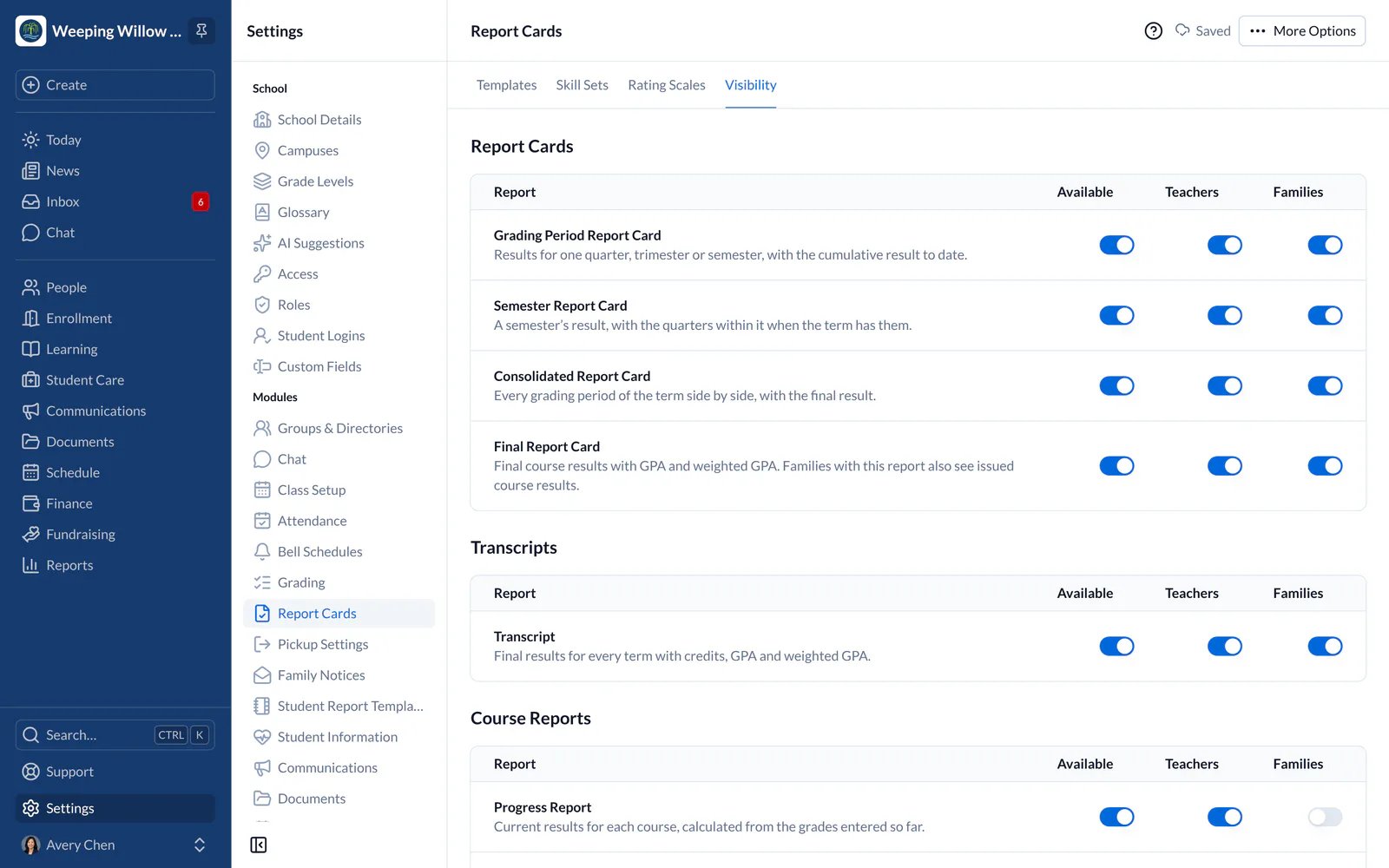
Who Can See Which Report
Portal › Settings › Report Cards › Visibility has three switches for each report:- Available turns it on for the school.
- Teachers lets teachers use it for their classes.
- Families lets parents and guardians see it for their own children.
A Real Example: Two Report Cards at Cedar Grove
Cedar Grove Christian School runs K to 8. Kindergarten to Grade 2 report skills, and Grades 3 to 8 report grades.- Marisol, the administrator, opens the existing “Report Card” template, renames it “Grades 3–8 Report Card”, turns on Show grade legends and Show teacher comments, and adds “Principal” and “Parent or guardian” signature lines. In Classes, Marisol chooses every Grade 3 to 8 class.
- Marisol adds a new report card template, “K–2 Progress Report”, with Results show set to None, and Show skills, Show rating key and Show attendance on. In Classes, the K to 2 classes.
- In Skill Sets, Marisol adds “K–2 Literacy” from a spreadsheet with Import Skills, on a four-level scale, and gives it to the K to 2 Reading courses.
Tips for Getting It Right
- Use the preview with a real student. Pick one with a long name and lots of courses, and check the phone view too.
- One template per division usually does it. Assign it to classes so nobody picks the wrong one when issuing.
- Grade 5 cards saying “Middle School”? That’s the template’s Printed title. Change it, or give Grade 5 its own template, then issue the report cards again.
- Use Notes. The Template tab’s notes are for staff choosing a template, such as “Use for Q4 only”, and aren’t printed.