

Is This for You?
Your SchoolCues plan covers a number of active students, such as up to 300. If you’ve had an email saying something like “312 active students, over your plan’s 300”, this guide is for you. Very often, the school hasn’t grown at all: last year’s graduates are still listed as students, a few families left over the summer, or teachers were added as “students” years ago so they’d get messages. The good news: nothing stops working while you’re over, and you have time to tidy up. A few minutes of housekeeping usually brings the count back where it belongs. Does your school use SchoolCues Classic? See Reduce Your Active Student Count in SchoolCues Classic.How the Count Works
- SchoolCues counts your active students every night. Alumni, archived students and applicants don’t count.
- Nobody loses access when you go over. Your administrators and billing contact get an email, and Subscription shows how many you’re over.
- If you stay over your plan for 30 nights in a row, your plan moves up to the size that fits, and you pay the difference for the rest of the year. You’re reminded a week before.
- Drop back to your plan’s size at any point and the 30 nights start again from zero.
- On a contract, your price stays the same for this contract year, and next year’s is set 60 days before renewal from the students you have then.
See Who’s Counted
Before you change anything, see what your count is made of. Portal › Settings › Subscription lists What’s Counted under your active students:- In a class this year: students enrolled in at least one class this school year.
- No class this year: active, but in no class now. These are often students who left and were never archived.
- Only Shortlisted or Misc classes: shown when you have any. Shortlisted, test and miscellaneous classes don’t count as a class.
- Possible duplicates: students who share a name and date of birth with another student. They’re already included in the rows above.
- Not Counted: alumni, withdrawn students and applicants.
Step 1: Move Graduates to Alumni
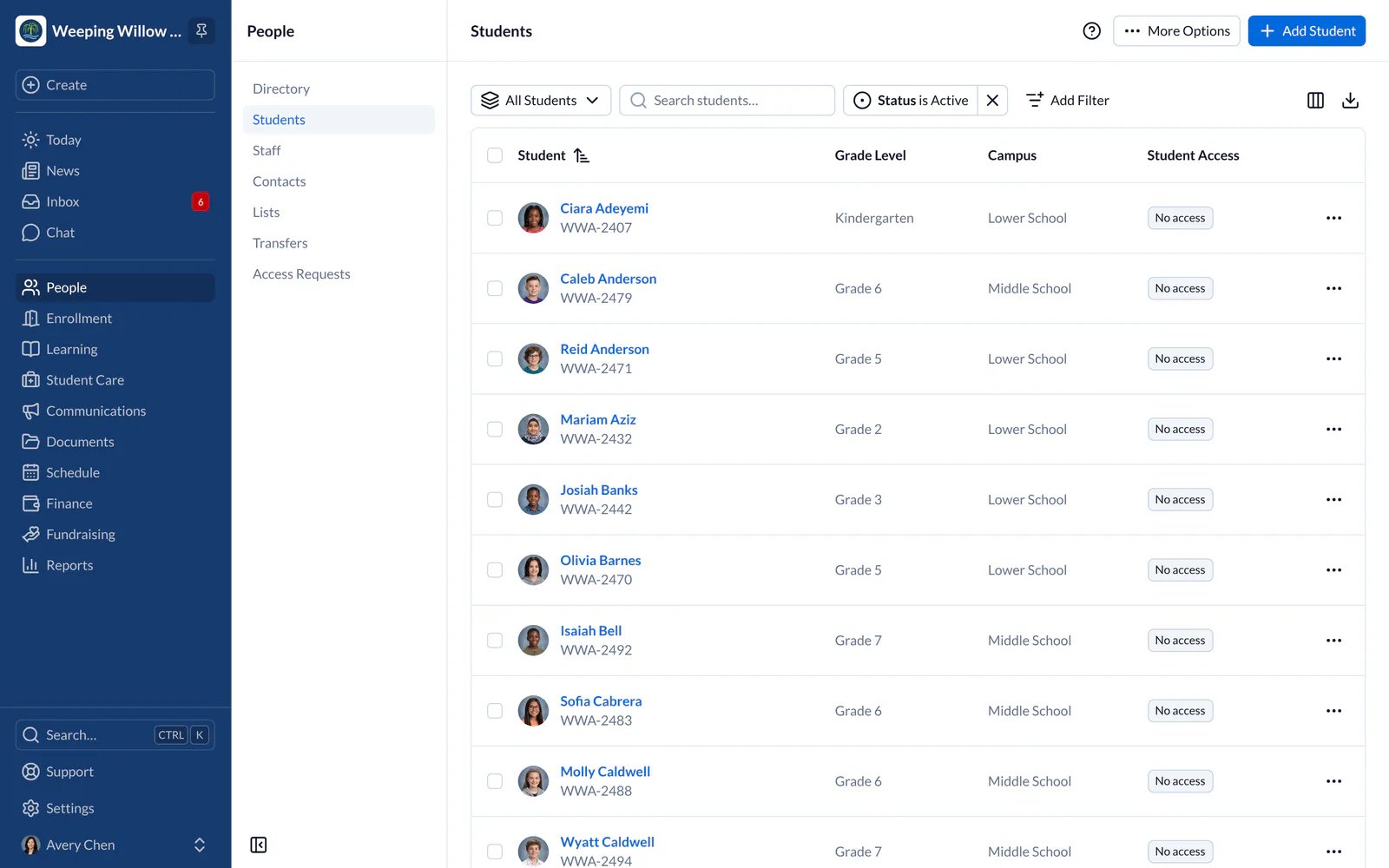
The most common cause. Last year’s eighth graders, or seniors, are still active.- Go to Portal › People › Students and filter by Grade Level for your top grade, or for anyone who has already left.
- Select the students who graduated. Use the checkbox at the top to select the whole page.
- Choose Move to Alumni from the actions for the selected students, add the graduation year, and confirm.
Step 2: Remove Staff Who Were Added as Students
In SchoolCues Classic, the only way to send a message to teachers was to add them as students, often in a pretend class called “Staff” or “Faculty”. That’s no longer needed, and each of those “students” counts toward your plan. Today, staff are people in their own right:- To message every staff member, choose All Staff when you add recipients to a message.
- To message some of them, such as the PE department or the after-school team, make a list in Portal › People › Lists. Lists can hold staff and contacts.
- Make sure each teacher is in Portal › People › Staff, so they still get messages and can sign in.
- In Portal › People › Students, find the “students” who are really staff. Filtering by the old “Staff” class or grade level usually finds them all.
- Open each one and choose Archive Student in More Options. Give a reason such as “Staff member, not a student”.
Step 3: Move Students to Your Other Schools
If your school is part of a group, a student who moved to another of your schools should be there, not here. On the student’s profile, choose Transfer to Another School in More Options. Once the other school accepts, the student is counted there instead. See Move Students Between Your Schools.Step 4: Archive Students Who Have Left
For anyone else who’s gone, such as a family who moved away in July or a student who withdrew mid-year:- Open the student in Portal › People › Students.
- Choose Archive Student in More Options.
- Record when they left and why, such as “Moved out of state”. Then confirm.
Use Move to Alumni for students who finished at your school, and Archive Student for those who left before finishing. Both stop counting toward your plan. Alumni stay easy to find and message as a graduating class.
A Real Example: The August Email
Hillcrest Academy’s plan covers up to 300 students. On August 20, Jordan, the school administrator, gets an email: “336 active students, over your plan’s 300”.- Jordan opens Subscription. Day 1 of 30, 36 over.
- In Students, Jordan filters by Grade 8 and finds last year’s 28 graduates still active. Jordan selects them all and chooses Move to Alumni, Class of 2026. That leaves 308.
- Jordan filters by the old “Faculty” class and finds 9 teachers who were added as students back in 2019. Each one is already in Staff, so Jordan archives the 9 “students” and makes a “Teaching Staff” list for messages that are just for teachers. That leaves 299.
- Two families withdrew over the summer. Jordan archives their three children, leaving 296.
Tips for Getting It Right
- Do it in August. The new year is when graduates and summer leavers pile up.
- Check before you archive. Make sure a “student” who is really a teacher is also in Staff, so they don’t miss any messages.
- Record why students left. It makes your re-enrollment and retention reports far more useful later.
- Keep an eye on the 90% mark. Subscription tells you when you’re close, so you can tidy up before you go over.